
Studio Tools
Overview
Section titled “Overview”Studio is the developer half of the admin panel. The same application your content team uses to edit rows also carries a schema editor, a SQL console, a JavaScript scratchpad, an RLS policy browser and a storage browser — and Studio is the mode that unlocks them. Nothing to install and nothing to deploy: it is already in the panel, behind the toggle in the drawer.
It exists because the alternative is a second set of credentials. Editing a collection, checking what a policy really allows, or running one query against production otherwise means a database client, a copy of the connection string and an audit trail that ends at “someone with psql”. Studio does all of it as the signed-in admin, through the same authorization the API uses.
The two modes
Section titled “The two modes”The panel has two modes — "cms" | "studio":
- CMS (
"cms") — For content editors and operations teams. Shows collections and data management. This is the default. - Studio (
"studio") — For developers. Unlocks the tools below.
Toggle between them with the admin mode controller or the drawer toggle. The
chosen mode is persisted in localStorage under rebase-admin-mode; a browser
that used the panel before 0.17.0 holds the old "content" value and is
migrated to "cms" on read.
Built-in Studio Tools
Section titled “Built-in Studio Tools”Collection Editor
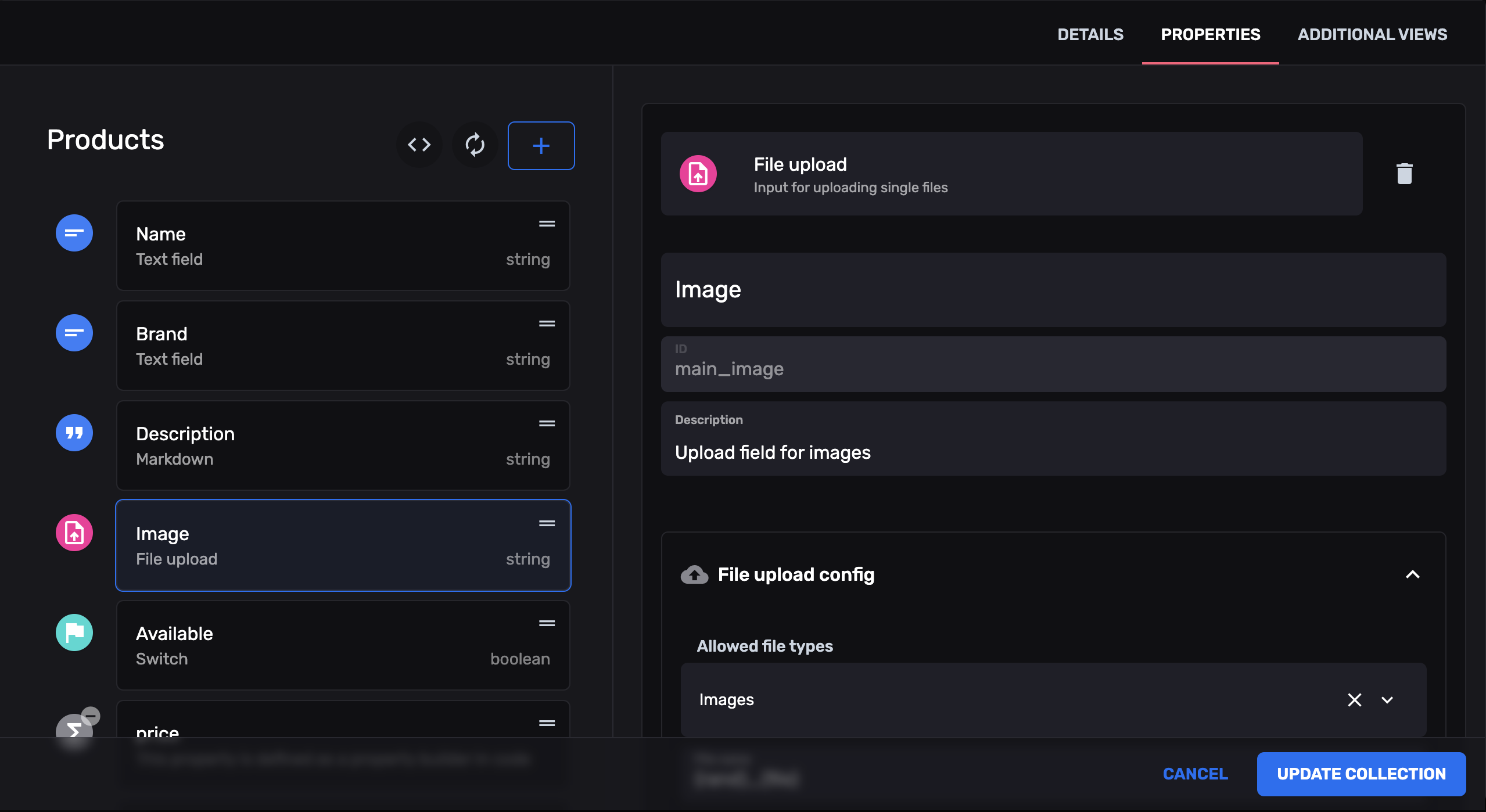
Section titled “Collection Editor”A visual schema editor that lets you create and modify collections through a drag-and-drop UI. When you save changes, it uses ts-morph to write the keys you changed — and only those — into your TypeScript source files, leaving the rest of each file as it was: imports, comments, formatting, handlers, shared properties. A change to something the file defines in code, such as a property imported from another module, is refused with the place to make it. It is the screenshot at the top of this page.
The editor is on wherever Studio is mounted — a scaffold’s <RebaseStudio/> is
enough, and there is no prop to add. collectionEditor tunes it rather than
turning it on:
import { RebaseCMS } from "@rebasepro/cms";import { RebaseStudio } from "@rebasepro/studio";
// Studio is mounted, so the Collection Editor is available. Nothing else// is needed for it.<Rebase>    <RebaseCMS collections={collections}/>    <RebaseStudio/></Rebase>
// `collectionEditor` is for fine-tuning — a read-only editor, a different// token — not for opting in.<RebaseCMS    collections={collections}    collectionEditor={{        getAuthToken: authController.getAuthToken    }}/>
Whether a save lands is the server’s decision, not the panel’s: the editor
rewrites collection source files, so it is off under NODE_ENV=production, in
baas mode, and on a server with no collectionsDir. The panel asks
GET /api/admin/schema-editor/status and shows the reason it gets back beside the
disabled button.
Built-in tools
Section titled “Built-in tools”These ship with Studio and are lazy-loaded by RebaseStudio — each is a separate
chunk, fetched the first time you open it. They are not importable on their own:
@rebasepro/studio deliberately exports only the orchestrator, so a console you never
open costs nothing.
| Tab | Slug | Group | What it does |
|---|---|---|---|
| SQL Console | sql |
Database | Run raw SQL against your PostgreSQL database and read results in a table. The table shows the last statement’s result, up to its first 10,000 rows or 32 MB of values; a longer result says how many rows there were, and copy and export include only the rows shown. Since 0.25 Such a result also offers Download full result as CSV: the server streams the whole of it through a read-only cursor (POST /api/admin/sql/csv), one query at a time, on a Postgres server of your own rather than the in-process development database. Values are the database’s text, as psql shows them, and Export JSON writes them so; Export typed JSON writes each value read by its column’s type — integers and numerics a JSON number holds exactly, booleans, json/jsonb as JSON — and keeps every other value as text. While a run is in flight, Cancel run gives the console back at once; a server that takes the socket’s CANCEL_SQL frame (it lists cancel_sql in the hello it answers the socket with) also stops the statement with pg_cancel_backend. The in-process development database cannot be interrupted, and an older server is left to finish the statement within its statement_timeout |
| RLS Policies | rls |
Database | Inspect and manage Row Level Security policies for your tables. A policy is listed as the database holds it, badged Differs from code where that is not what the project declares. A policy Rebase generates cannot be edited straight in the database, and on a table Rebase manages a banner says that each server start and rebase db push re-apply the declared policies |
| Schema Visualizer | schema-visualizer |
Database | Entity diagram of your collections and their relations, drawn from the collection definitions: tables, columns, types and relations are as the collections declare them. Only the RLS markers are read from the database. The layout runs in a web worker, so the page stays responsive while a large diagram is arranged. A schema of more than 300 tables is drawn one table’s neighbourhood at a time — the tables one or two relations away — starting from the most connected table; pick another table in the list to move |
| Branches | branches |
Database | Create and manage database branches |
| Backups | backups |
Database | Browse and download database backups |
| Logs Explorer | logs |
Database | Live request log, plus everything the server reports at warn or error — see below |
| JS Console | js |
Compute | Write and execute JavaScript through the Rebase SDK |
| Cron Jobs | cron |
Compute | Inspect and manage scheduled tasks |
| Storage | storage |
Storage | Browse, upload and manage files across your storage backends |
| API Explorer | api |
API | Interactive API documentation, with a request runner |
| API Keys | api-keys |
Access Control | Create and manage scoped service API keys |
What the Logs Explorer shows
Section titled “What the Logs Explorer shows”Two streams into one in-memory ring, held on the server process:
- Every request — method, path, status, duration, the
X-Request-ID, the collection when the request was about one, and, when the request failed, the errorcodeand message the client received. A failed request is recorded atwarn(4xx) orerror(5xx), so the level filter finds it. Itssourcecomes from the path:/api/auth/*and/api/oauth/*areauth,/api/storage/*isstorage, and everything else isapi, so the Source filter finds sign-ins under Auth and uploads under Storage. - Everything the server reports at warn or error — a schema warning, an
auth refusal, a driver diagnosis, a boot failure.
sourcecomes from the message’s own prefix ([API],[Auth],[storage],[realtime]), and anything unrecognised issystem.
Routine info chatter is deliberately left out. The ring holds 10,000 entries
and a wall of 200s evicts what you opened the panel to find.
A custom function that throws therefore shows its own message here, against the request that called it — the case this exists for.
The ring is per process and per boot: it is not durable, it is not shared between replicas, and a restart empties it. For anything you need to keep, read the process’s stdout, which carries the same lines and more.
The explorer says so. It shows the log of the one server instance serving
it and names that instance: the snapshot event of
GET /api/admin/logs/stream carries instance, the process’s HOSTNAME (the
pod name on Kubernetes, the container id under Docker) or else pid-<n>. There
is no view across replicas, nor of the functions and worker processes of a
split deployment. A reconnect that lands on
another instance replaces the window instead of mixing the two logs.
The Collection Editor is a Studio tool too, but it is not in this list because
it is registered differently: RebaseStudio does not lazy-load it. The panel mounts
it wherever Studio is registered, because unlike the tools above it needs the
project’s collection source at hand to write back to. That is a difference in how it
is mounted, not in what it is — it edits schema, and it belongs beside the SQL and
RLS editors.
Turning Studio on
Section titled “Turning Studio on”One component, anywhere inside <Rebase>. It renders nothing — it registers
the tools, and <RebaseShell> draws them:
import { RebaseStudio } from "@rebasepro/studio";
export function App() {    return (        <Rebase client={client} authController={authController}>            <RebaseCMS collections={collections}/>            <RebaseStudio/>            <RebaseShell title="My App"/>        </Rebase>    );}
The tools appear in the drawer while Studio mode is active. Leave
<RebaseStudio> out entirely and you ship a content-only CMS: no Studio mode,
no toggle, nothing lazy-loaded.
Adding your own tool
Section titled “Adding your own tool”devViews puts your own views beside the built-in ones. They are ordinary
AppViews — the only thing that makes one a
Studio tool rather than a CMS view is which component it is registered on:
import type { AppView } from "@rebasepro/cms-types";
const queues: AppView = {    slug: "queues",    name: "Queues",    group: "Compute",    icon: "ListOrdered",    description: "Depth and failures, per queue",    view: <QueuesView/>};
<RebaseStudio devViews={[queues]}/>| Registered on | Shows up in | For |
|---|---|---|
<RebaseCMS views> |
content mode | things the people editing content use |
<RebaseStudio devViews> |
Studio mode | things you use to run the backend |
A view goes in exactly one of them — the drawer sorts by which one registered it, so listing a slug in both hides it from content mode.
Like tools, the list is read by its contents: writing it inline is safe, and
a re-render of the host does not remount whichever tool is on screen. Renaming a
view or changing its group does re-register it.
Choosing which tools appear
Section titled “Choosing which tools appear”Omit tools and every tool above is registered. Pass it to register a subset —
a hosted console that has its own storage browser, say, can leave that one out:
<RebaseStudio tools={["sql", "rls", "schema-visualizer", "api"]} />The list is read by contents, not identity, so writing it inline is safe: a re-render of the host does not tear down and remount whichever tool is on screen.
Next Steps
Section titled “Next Steps”- Plugins — Extend the framework with plugins
- Collections — Collection configuration